
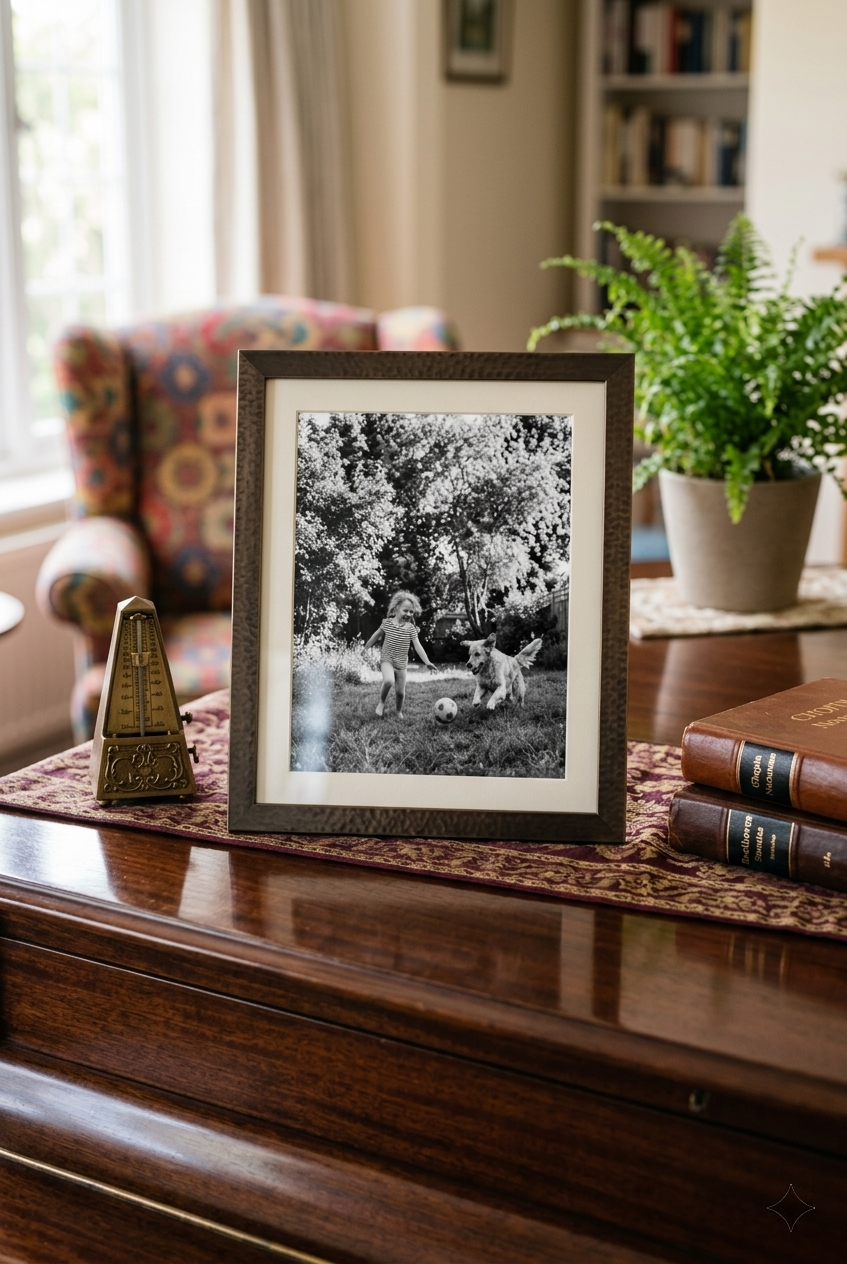
Printing a photo at an exact custom size — such as a 6×8-inch print — is one of the most common tasks home users want to accomplish. Yet many beginners find the process confusing. If you have ever ended up with a wrongly sized printout, do not worry — you are not alone. The good news is that ImagePrint makes custom-size photo printing completely achievable once you understand three key steps: setting the correct page size, resizing your photo precisely, and choosing the right print settings. This step-by-step tutorial walks you through every detail so that your next print comes out exactly right.
Tip: Always make sure the page size in ImagePrint matches the actual paper you have loaded in your printer. This single step prevents the majority of sizing mistakes.
- Step 1: Set Up the Correct Page Size Before You Do Anything Else
- Step 2: Add Your Photo and Resize It to an Exact Custom Size
- Step 3: Convert Your Photo to Black and White Using Image Corrections
- Step 4: Configure Paper Size and Color Mode in the Print Dialog
- Troubleshooting: Why Is My Printed Photo Still the Wrong Size?
- Summary: Your Custom size Print Checklist
Step 1: Set Up the Correct Page Size Before You Do Anything Else
The very first thing you must do in ImagePrint is configure the page size. This step is critical because ImagePrint prints your document at the size displayed on screen — not the size of the original photo file. Therefore, if you want a 6×8-inch print, the page must also be set to 6×8 inches before you add your photo.
To open the Page Setup dialog, click the  Page Setup button on the main toolbar, or press Ctrl+Shift+P on your keyboard. The dialog opens and shows you four main sections: Margins, Layout, Page Size, and Convert.
First, locate the Page Size dropdown. Click the Browse… button next to the dropdown — this is far faster than scrolling through the full list. A filter dialog appears. Type “6×8” in the filter textbox and ImagePrint immediately narrows the list down to matching sizes. Double-click the “6 × 8 in” entry to select it. Notice that the live preview panel on the right side of the dialog updates immediately to reflect your new page size.

Next, check your Margins. Most desktop printers cannot print all the way to the edge of the paper. A margin of 0 inches is fine only if your printer explicitly supports borderless printing. Set all four margins to 0 for photo paper that supports borderless mode. Because borderless printing allows the image to reach every edge of the paper, it produces the cleanest result for photographs. If any margins are specified and the image spans the whole page size, the image will be cut when printed.
Finally, verify that the Orientation is set to Portraitfor a 6×8-inch print, since the height (8 inches) is greater than the width (6 inches). Click OK to confirm your page setup. Your canvas now displays a 6×8-inch page — exactly matching your target paper.
Tip: If you cannot find your paper size in the standard list, scroll to the very last item in the Page Size dropdown and select [Custom size]. This activates the Width and Height fields so you can type any dimensions you need.
Step 2: Add Your Photo and Resize It to an Exact Custom Size
Now that your page is the right size, you can add your photo. Double-click anywhere on the white page area, or click Insert >  Image on the top menu bar, to open the file picker. Navigate to your photo, select it, and click Open. ImagePrint places the photo on the page.

However, the photo may not fill the page perfectly yet. Consequently, you need to resize it. Click on the photo to select it, then click the  Resize button on the image context toolbar — the small floating toolbar that appears just above the selected photo. The Image Size dialog opens.
Using the Resize Dialog to Set a Custom Print Size
Inside the Image Size dialog, click the Standard Print tab. Here you find a Photo size dropdown. Click Browse… and type “6×8” to quickly find the 6×8-inch (Photo 6R) size, then select it. Make sure the Orientation matches your page, and uncheck the Exclude Page Margins checkbox if you are using borderless printing. This ensures your photo fills the full printable area without unwanted white borders. Click OK to apply.

Alternatively, if you have a truly non-standard custom size, choose the Custom size option in the same dialog and type your exact width and height. ImagePrint will then resize and crop the photo so it perfectly matches your specified dimensions.
After resizing, drag the photo to the top-left corner of the page. ImagePrint snaps it to the page margin automatically. The photo should now fill the entire white area of the page.

Tip: If the image appears stretched or distorted, check that Lock aspect ratio is enabled in the Properties panel on the right side of the screen. This setting preserves the photo’s original proportions when you resize it.
Step 3: Convert Your Photo to Black and White Using Image Corrections
Now that your photo is perfectly sized, you can convert it to black and white to get some cool effect. Select your photo on the page, then click the  Image Corrections button on the image context toolbar. Alternatively, simply double-click the photo to open the Image Corrections dialog.
Inside the dialog, scroll down the list of sliders until you see the Gray scale option. Enable it by moving the slider until it displays 100. ImagePrint immediately removes all color from the photo, leaving only black, white, and shades of grey. The live preview panel on the right side updates in real time so you can see exactly how the print will look.

Furthermore, black and white photos often benefit from a slight contrast boost. Therefore, move the Contrast slider a small amount to the right — try a value between 5 and 15 — to make the dark tones deeper and the highlights crisper. Additionally, you can use the Brightness slider to brighten or darken the overall image if needed. Start with small adjustments and watch the preview closely.
When you are satisfied with the result, click OK to confirm. If you change your mind, click the Reset button inside the dialog at any time — this instantly restores all sliders to zero and lets you start fresh.
Tip: Before you commit to expensive photo paper, always do a test print on plain paper first. Black and white tones can look different on paper compared to your screen. A plain-paper test costs almost nothing and helps you catch contrast or brightness issues early.
Step 4: Configure Paper Size and Color Mode in the Print Dialog
You are almost ready to print. Now you need to confirm two important settings inside the Print dialog: Paper size and Color mode. Incorrect settings here are the second most common cause of wrong-sized or wrong-colored prints.
Now, open the Print dialog by pressing Ctrl+P or clicking the  Print button on the main toolbar.
In the Paper section of the Print dialog, click the Paper size dropdown and confirm it matches the paper you have loaded in your printer. For a 6×8-inch print, select “Photo 6R” or “6 × 8 in” from the list. If you cannot find it quickly, click Browse… and filter by size. ImagePrint typically pre-selects the paper size that matches your document page, but always verify it manually before clicking Print.

Additionally, locate the Color mode field. Since you have already applied Gray scale correction directly to the photo using Image Corrections, you can leave Color mode set to Color. ImagePrint will faithfully render your gray-corrected image. However, if you want to save ink on a test print, switch Color mode to Grayscale to tell the printer to use only black ink.
Also check the Quality field in the Paper section. For a final black and white photo print, set quality to 1200 DPI for the sharpest result. For a quick draft, 300 DPI is sufficient and prints much faster.
Press the Print button to send the photo to the selected printer.
Tip: Set the Paper type field to match the actual paper in your printer — for example, “Photo Paper” or “Glossy.” This tells the printer how much ink to apply and how long to let it dry. Using the wrong paper type setting is a frequent cause of smeared or faded prints.

Troubleshooting: Why Is My Printed Photo Still the Wrong Size?
Even after following the steps above, you might occasionally still end up with an incorrectly sized print. Fortunately, each cause has a straightforward fix.
The page size and printer paper size do not match. This is the single most common mistake. Return to Page Setup (Ctrl+Shift+P) and verify that the page dimensions equal the paper in your printer tray. Then open the Print dialog and confirm the same size appears in the Paper size field.
The Scale is not set to 100 percent. Open the Print dialog, go to the Layout section, and reset Scale to exactly 100. Additionally, check that the printer driver Properties dialog does not apply a separate scaling of its own.
The photo does not fill the page. Select the photo, click Resize on the context toolbar, and use the Standard Print tab to set the photo size to match your page.
The print has unexpected white borders. Your printer may not support borderless printing. In that case, set the page margins to match your printer’s minimum margin in the Page Setup dialog. Check your printer’s manual to find the minimum printable border.
Quick Fix: If nothing prints correctly, try enabling the Print as Image option in the Output section of the Print dialog. This converts the entire page to a single bitmap before sending it to the printer, which resolves most driver compatibility issues.
Summary: Your Custom size Print Checklist
Follow this quick checklist every time you print a custom-size photo in ImagePrint and you will consistently get great results:
- Open Page Setup (Ctrl+Shift+P) and set the page size to match your photo paper.
- Add your photo to the page and use the Resize button to set an exact custom size.
- Open Image Corrections (double-click the photo) and apply any color effects.
- Open the Print dialog (Ctrl+P) and confirm Paper size and Paper type match the paper in your printer.
- Do a test print on plain paper before committing to photo paper.
- Click Print and enjoy your perfectly sized photo.
With these steps in place, printing a custom-size photo in ImagePrint becomes a repeatable, predictable process. Start with the right page size, resize your photo precisely, apply color adjustments, and confirm your printer settings — and you will never end up with an incorrectly sized print again.

