
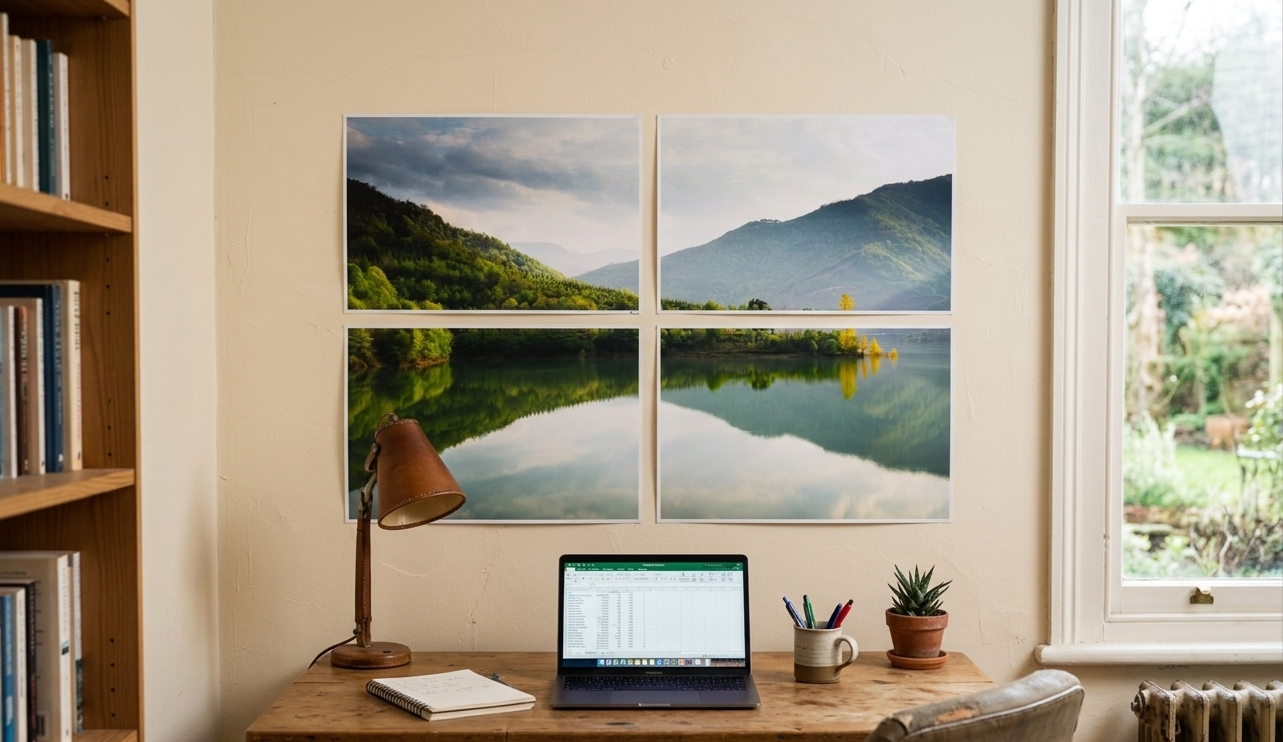
Print collages, giant posters, and passport photos at home — without the complexity.
Ever wanted to print a grid of family photos without wrestling with your printer’s built-in software? Or stretch a single high-resolution image across four A4 sheets to make a wall poster? Or knock out a sheet of passport photos without paying a photo booth? ImagePrint does all of that — and a lot more — from your home computer.
This guide covers everything you need to know: what the app does, how its key features work, and tips for getting the best results every time you print.
What ImagePrint does
ImagePrint is a Windows desktop app built for one job: giving you precise, user-friendly control over how your photos appear on paper. It handles layout, sizing, color correction, and printing in one place — no Photoshop skills required.
- Multi-photo grids – Arrange dozens of photos in rows and columns with automatic sizing
- Large posters – Stretch one image across multiple pages — tape them together for a wall-sized print
- Passport photos – Built-in sizes for 400+ document types across hundreds of countries
- PDF export – Export your finished layout as a high-resolution PDF to share or archive
- Wide format support – ImagePrint reads over 120 image formats — JPG, PNG, HEIC, AVIF, WebP, RAW files from Canon/Nikon/Sony/Fujifilm, PDFs, SVGs, and dozens more. If it’s an image, ImagePrint can almost certainly open it.
Start here: Page setup
Before you add a single photo, set your page size. This is the most important step in ImagePrint. The page size on screen must match the paper loaded in your printer — if they differ, your output will be cropped, shifted, or scaled incorrectly.
Open  Page Setup with Ctrl+Shift+P or the toolbar button. The key settings are:
- Page size — choose from 150+ standard sizes (A4, Letter, 4×6, 5×7, and many more)
- Orientation — portrait or landscape; switching swaps width and height automatically
- Margins — 0.5 in is a safe default; set to zero only for borderless printers
- Auto size — keep this on so new pages are added automatically as your layout grows
- Resolution — 300 DPI is the standard for photo-quality printing
Quick tip: Use the Browse button in the Page Setup dialog to search paper sizes by name or dimensions — much faster than scrolling a dropdown of 150 options.
Printing multiple photos
Photo Strip — fastest option
The  Photo Strip container arranges all your photos in an automatic grid. Add it from the left toolbox, drag it to the top-left corner of the page, then drop in your photos. ImagePrint calculates each photo’s size based on your page dimensions, the number of rows and columns you set, and the spacing between them.

You can drag photos to reorder them inside the strip. Change the grid from 2×2 to 4×3 (or anything else) in the Properties panel on the right. You can even change the frame shape — round, ellipse, heart, diamond — for creative layouts.
Flow Layout — precise sizing
If you need specific photo dimensions rather than auto-calculated sizes, use the  Flow Layout container instead. It works similarly, but photos keep the size you set and the container reflows them accordingly. You can mix different-sized photos, set alignment (left, center, right, stretch), and control page breaks so no photo ever gets split between two pages.
Color corrections
Double-click any photo to open the Image Corrections dialog — your built-in digital darkroom. Every adjustment has a live preview before you commit.
 Brightness &
  Contrast — fix underexposed or flat-looking shots
 Gamma — brighten midtones without blowing out highlights
 Temperature — warm up indoor shots or cool down harsh daylight
 Saturation — make colors pop or tone them down
 Grayscale /
  Sepia — instant black-and-white or vintage conversions
Not sure where to start? Click Auto Correct and ImagePrint analyzes the image and makes its best guess. You can apply Auto Correct to all photos in a container at once using the button on the Photo Strip or Flow Layout context toolbar.
Printing a large poster

Printing a photo across multiple pages is one of ImagePrint’s standout features. Here’s the workflow:
Set up the page
Open Page Setup, match your page size to your printer paper, and enable Auto Size.
Add and position your image
Double-click the canvas to add the photo, then snap it to the top-left margin.
Use the Resize dialog
Click Resize on the image toolbar, choose Standard Print, and select your paper size with “Exclude Page Margins” checked. This locks the image to exact page-aligned dimensions.

Drag to scale
With Lock Aspect Ratio on, drag the bottom-right handle. The image snaps to page-sized increments and new pages are added automatically.

Print and assemble
Open the Print dialog, verify the range and paper size, and print. Tape the pages together for your finished poster.
Passport and ID photos
ImagePrint has a dedicated  Repeat Image container that’s designed specifically for this. Add it from the toolbox, drop in your portrait photo, and set the grid — 2 rows × 2 columns gives you four copies on one page, for example.
For the correct dimensions, click  Resize on the image and open the ID / Passport tab. Select your country and document type. The database covers 400+ document types worldwide — passports, visas, national ID cards, residence permits, and more.
For a clean, professional finish, also set two properties in the Properties panel:
- Bleed — adds a ~3 mm buffer beyond the photo edge so slight imprecision when cutting doesn’t leave white borders
- Trim marks — prints small guide lines showing exactly where to cut
Pro tip: For the sharpest cuts, invest in a photo punch cutter in your required size (e.g., 2×2 in for US passports, 35×45 mm for most European documents). A punch cutter beats scissors every time.

Print settings that matter
The  Print dialog (Ctrl+P) gives you full control. A few settings worth paying attention to:
- Paper size — must match what’s loaded in the tray. Use Browse to find it quickly.
- Quality (DPI) — 300 DPI for everyday photo prints; 600+ for fine detail; 1200 for professional gallery quality
- Paper type — always match to your actual paper (plain, glossy, matte). The wrong setting causes ink smearing or dull colors.
- Mirror — flip the print horizontally for iron-on T-shirt transfers or temporary tattoos
- Print as Image — if your print looks wrong (missing elements, bad transparency), enable this. It converts the page to a single bitmap and resolves most driver compatibility issues.
Quick tips for better prints
- Always do a test print on plain paper before using expensive photo paper
- Enable Show Page Margins on the toolbar while designing — anything in the hatched area gets cropped
- Hold Alt while dragging to temporarily bypass snap-to-object alignment
- Hold Ctrl while dropping images into a container to ensure they all land inside it
- Print settings are saved with your .cipx file — no need to reconfigure each time
Supported formats
A few highlights from ImagePrint’s extensive format support:
- JPG / JPEG
- PNG
- HEIC / HEIF
- AVIF
- WebP
- BMP
- TIFF
- GIF
- SVG
- PSD
- RAW / DNG
- CR2 / CR3
- NEF / NRW
- ARW
- RAF
- ORF
- RW2
- EMF / WMF
- XCF (GIMP)
Common questions
Why does my printed photo look different from my screen?
Almost always a page size mismatch — the page size in ImagePrint must match the paper in your printer. Also check that the correct paper type is selected in the Print dialog.
Can I add a whole folder of photos at once?
Yes. Open File Explorer, select your folder, and drag it directly onto a Photo Strip or Flow Layout container. ImagePrint scans all subfolders and adds every image it finds.
What file format does ImagePrint save to?
ImagePrint saves as .cipx files. These store your full layout — photos, text, print settings, everything. You can upload them to OneDrive or Google Drive to access them on another computer.
Can I add text to my layouts?
Yes. The Text tool in the left toolbox creates a fully formatted text box with font, size, color, alignment, bullet lists, and word wrap. Custom fonts are embedded in the .cipx file so the layout looks the same on other computers.

